System administrator
System Maintenance
Scheduled Messages
Modify message
Create message
Scheduled messages
Message frequency options
Report selection
Email settings and troubleshooting
Send one-time message
T&A Web
UK & IRE time change instructions
T&A instructions for UK & IRE Time Change - October 2026
FES Instructions for UK & IRE Summer Time Change – October 2026
Dashboard Maintenance
Profile maintenance
Tab maintenance
Dashboard maintenance
Reports widget
Widget maintenance
Widget public URLs
Themes and Dashboard
Modifying and deleting a created Theme
Dashboard background
Creating a Theme
Custom login logos
Active Themes
Progress Indicator
Theme
Calendar Maintenance
Create calendar
Calendar profiles
Calendar data types page
Calendar maintenance
Creating a Calendar data type
Payslip Management
Kiosk
Kiosk details
Kiosk Configuration
Modify action
Kiosk site planner
Kiosk log
Modify Kiosk preferences
Preparing to install Kiosk
Terminal Site Planner
Deactivate and Reactivate the terminal webpage
Upgrade Terminal Firmware on 900 series or Access Control Unit via Web Service
Terminal upgrades
Terminal Site Planner
Poller preferences
Terminal Actions
Job Scheduler
Poller log
SAML Authentication
Licensing
Licensing upload errors
Upload T&A 8 License Instructions
Temporary Licence
Version Number Mismatch
Licensing
Request a Licence
Upload a Licence
Employee License
Messages Received
Enroller
Language Maintenance
Profile language
Importing and Exporting phrases
T&A Error phrases
Language maintenance
Culture maintenance
Advanced T&A Products Minimum IT Specifications
Configuring T&A for use with Microsoft Exchange Online
Support Knowledge Base
Clearing Anomalies - Start a New Period End
T&A 8 licence expiry and renewal
Adding and changing Users in WINTMS
Full Rights for New User
AutoID Badge designer
Delete a Finger Template
Need to Create a Report With a Date Prompt
T&A - European Working Time Directive Features
How to Change the Name Displayed on the Terminal
Client Install instructions
How to Download an Employee to the Terminals
Create New User
Changing the IP Address on a Mitrefinch 900 Series clock or Access control unit.
Employee in TMS but not in HR Manager
GPS clocking location from a mobile phone
Report That Shows if the Employee Has a Photo
Obtaining "500 internal server error" details
Spring Time Change - North America
How to Unlock a User
Support is Evolving
Data Assurance Module - Identifying and preventing the accidental deletion of data (TMS versions 8.33.0.0 and below)
.NET Framework 4.8 for T&A (version 8.35.0+)
'Use Only Once' Checkbox on Book Absence Screen
Changing the OT Threshold for OT Hours Calculation
Poller Keeps Going Down
Help with Australian ADP Export Coding
The Basics
Change Culture
Supervisor Basic Operations
Apply assumed clocks
Changes to hierarchical Security
Adding an additional day of credit
Invalid Login
T&A Entitlement Year End Procedure - Hosted by OneAdvanced
T&A Entitlement Year End Procedure - On premise
Logging in and out as an Employee
Apache Log4j CVE-2021-44228 "Log4Shell" vulnerability
Employee basic operations
TMS Apps
Logging in: the Help button
Adding a keyed absence
Logging in as a Supervisor
Error tGlb.GetPkg
General navigation
COVID 19 - How to manage staff working from home
SAML Authentication in TMS 7
Auto-Rostering - User Admin/Supervisors
Auto-Rostering overview
What data is synced from Time & Attendance to Auto-Rostering?
Schedule Setup
Manage Schedules
Solving a Schedule
Schedule Approval
Employee and User Management
Reporting
Employee Confirmations
Dashboards
Frequently asked questions - Auto-Rostering
T&A Data Share
Identity by OneAdvanced
Understanding Identity with T&A
Introduction to Identity
Identity by OneAdvanced - Platform guidance
Identity FAQs
Choose your authentication method (Federated vs Non-federated)
Managing multiple access needs
Employees without email addresses
What do I need to know?
Managing Identity
Leavers, rejoiners and deleting employees – the impact on Identity.
Setting up Non-Federated
Step 1 - Requesting your OneAdvanced Identity Service
Step 2 - Configuring your OneAdvanced Identity Organisation
Step 3 - Identity onboarding in Time and Attendance
Step 4 - Perform the Identity onboarding process
Step 5 - Inform employees and managers they can login using Identity
Step 6 - Employees and managers successfully login to Time and Attendance through Identity.
Setting up Federated
Federated Login with Time & Attendance - where Identity is already enabled for non-federated login
Step 1 - Requesting your OneAdvanced Identity Service (Federated)
Step 2 - Configuring your OneAdvanced Identity Organisation (Federated)
Step 2a - Setting up Federated using Entra, Google Identity or similar
Step 3 - Identity onboarding in Time and Attendance (Federated)
Step 4 - Perform the Identity onboarding process (Federated)
Step 5 - Inform employees and managers they can login using Identity (Federated)
Step 6 - Employees and managers successfully login to Time and Attendance through Identity (Federated)
SFTP Configuration
SFTP - Overview
SFTP - Prerequisites
SFTP - Generate your RSA 4096-bit SSH Key
SFTP - Connect with FileZilla
SFTP - Connect with WinSCP
SFTP - Upload and Download Files
SFTP - Troubleshooting
Onsite Report – OneAdvanced’s Liability Statement
RD Web User Guide: Duo Authentication Process Guide
Supervisor
The Supervisor View
Employee <undefined>
The Supervisor dashboard
Supervisor toolbar
Selecting Employees
Selection options
Employee and Group functions as a Supervisor
Change Supervisor password
Supervisor Functions
Clocking In and Out
Clocking in and out as a Supervisor
Clocking TAS
Location mapping for Clockings
SMS Clocking with Esendex
Make a T&A clocking
Absences
Employee Security
Invalid Credentials
Locking and unlocking an employee's account
Changing an Employee's PIN
Self service password reset
Password Expiry for Employees
Employee passwords
Timesheets
Payslip Management
Calendars
Restart Employee
Employee Maintenance
Availability
Supervisor Group Functions
On-site List
On-site list profile maintenance
Maintain On-site list
On-site list (Supervisor)
Maintain current watches
Modify On-site list
On-site system preferences
On-site list options
Diary
Group Planner
Rosters
Copy periods action
Create named roster action
Group planner preferences
Shift actions
Shift Lock To
Create personal rosters action
Group planner
Group Clock Card
Group Skills
Letters
Group Absence Profile
Find Cover
Job Planner
Group Messages
Hours Approval
Mass Change
Anomalies
Editing work records to correct Anomalies
Authorising in the Anomalies page
Review Anomalies as Supervisor
Group Badge List
Requests List
Adding Additional Payments
Budgeting
Reports
Reports overview
Supervisor Access to Reports
Default Reports
Report profiles
Creating a New Report
Adding additional columns to a Report
Report tasks
Reports employee selection
Bradford factor report
Running a Report
WinTMS User Guide
Employee
The Employee Dashboard
Employee Functions
Requests
Visitor Booking
On-site List
Employee Planner
Calendars
Clock Card
Clock card
Work record
Clockings Panel
Premium bands panel
Hours bands panel
Additional payments panel
Worked hours panel
Check Anomalies as Employee
Clocking T&A
Actual Lateness
Recent clockings
Employee Details
Timesheets
Reports
Payslips
Group Absence Profile
Availability
Availability
Availability details
Add Availability
Copy Availability
Delete availability
Availability errors
Absences
Employee Documents
Planned Shifts
Employee Messages
Skills
Employee Security
Auto-Rostering - Employees
Release Notes
Upgrading Time and Attendance
Release Reports
T&A 8.51.2.0 Release - 16th September 2026
T&A 8.51.1.0 Release - 4th August 2026
T&A 8.51.0.1 Release - 29th June 2026
T&A 8.51.0.0 Release - 26th May 2026
T&A 8.50.0.1 Patch Release - 11th May 2026
T&A 8.50.0.0 General Release - 21st April 2026
T&A 8.49.0.0 General Release - 20th March 2026
T&A 8.48.0.0 General Release - 27th February 2026
8.48 upgrade for P60 and Payroll End End - what you need to know
T&A 8.47.0.1 Patch Release - 20th February 2026
T&A 8.47.0.0 General Release - 9th January 2026
OneAdvanced mobile app
T&A 8.46.2.0 General Release - 27th November 2025
T&A 8.46.1.0 General Release - 30th October 2025
T&A 8.46.0.0 General Release - 15th October 2025
T&A 8.45.0.1 General Release - 21st August 2025
T&A 8.45 General Release - 9th July 2025
OneAdvanced People mobile app 1.3 release - 4th June 2025
T&A 8.44.0.0 General Release - 29th May 2025
OneAdvanced People mobile app launch - 20th March 2025
T&A 8.43.0.0 Controlled Release - 12th March 2025
T&A 8.42.0.0 General Release - 5th February 2025
T&A 8.41.2.0 General Release - 13th December 2024
T&A 8.41.1.0 General Release - 4th December 2024
T&A 8.41.0.0 General Release - 6th November 2024
T&A 8.39.0.1 Controlled Release - 17th July 2024
T&A 8.38.5.2 Controlled Release - 1st May 2024
T&A 8.39.0.0 Controlled Release - 19th June 2024
T&A 8.38.5.1 General Release - 16th February 2024
T&A 8.38.5.0 Controlled Release - 29th November 2023
T&A 8.38.4.1 Controlled Release - 2nd November 2023
T&A 8.38.4.0 Controlled Release - 1st September 2023
T&A 8.38.3.0 Controlled Release - 27th July 2023
T&A 8.38.2.0 Controlled Release - 9th June 2023
T&A 8.38.1.0 Controlled Release - 2nd May 2023
T&A 8.38.0.0 Controlled Release - 20th March 2023
T&A 8.37.4.2 General Release - 17th February 2023
T&A 8.37.4.0 Controlled Release - 20th January 2023
T&A 8.37.3.0 Controlled Release - 2nd December 2022
T&A 8.37.2.0 Controlled Release - 21st October 2022
T&A 8.37.1.0 Controlled Release - 1st September 2022
T&A 8.37.0.0 Controlled Release - 22nd July 2022
T&A 8.37.0.1 General Release - 23rd August 2022
T&A 8.36.10 Controlled Release - 9th June 2022
T&A 8.36.9.0 Controlled Release - 28th April 2022
T&A 8.36.8.1 General Release - 28th March 2022
T&A 8.36.7.1 General Release - 17th February 2022
T&A 8.36.7.0 General Release - 3rd February 2022
T&A 8.36.6.0 General Release - 16th December 2021
Got an idea?
OneAdvanced Mobile App
- All categories
- System administrator
- The Basics
- T&A Entitlement Year End Procedure - Hosted by OneAdvanced
T&A Entitlement Year End Procedure - Hosted by OneAdvanced

Entitlement Year End Procedure for T&A - Hosted by OneAdvanced
Introduction
For customers with Time & Attendance as a solution hosted by OneAdvanced, this document explains how to perform the Entitlement Year-End Procedure. This allows you to reset the entitlements for all employees to the start of a new year. This procedure should be performed after each entitlement reaches the end of its specified year. Any entitlement to be carried over will then be calculated automatically.
The year start and year end may vary for different entitlements. For example, the holiday entitlement year may run from January to December, whereas the training entitlements might run from April to October. Your current Start and End Dates can be confirmed by clicking on the menu: System > Entitlements.
If you use individual entitlement years (i.e. different year start and end dates for each employee), you should still perform this procedure once a year so that the default settings remain correct for any employees who do not have individual entitlement years set up.
Please note you will also need to carry out this procedure separately for each entitlement type you have defined (even if the year ends on the same date) ie - Toil
Preparation for the Year End Procedure:
Step 1 - Firstly confirm that all changes to previous year’s entitlements has taken place. This means that any annual leave entries should be entered or populated for the previous year prior to the year end taking place. Otherwise the carry over figure for employee’s will be incorrect.
Step 2 - It is recommended that you run the ‘Entitlement Report’ (available from the menu: Reports > Custom Reports) to check that the relevant employees have taken their entitlement for the previous year. It is recommended that you save a copy of the report for future reference.
Watch the video tutorial on Step 2 - Run Entitlement Report:
How to perform the Year End Procedure:
First check that the employees have an entitlement value for ‘Next Year’. In TMS, select an employee then the menu: Employee > Employee Details and click the Entitlements tab at the bottom of the Employee Details screen.
When you run the Year End procedure, the value in the `Next Year` field will move across into the `This Year` field. Therefore, you must ensure that the `Next Year` field is correct for each employee prior to performing the Year End procedure. If the ‘Next Year’ value is incorrect you will have to enter the correct value into the `This Year` field before the Year End procedure is run.
To modify an entitlement, click the Edit button and then select the required Entitlement from the list.
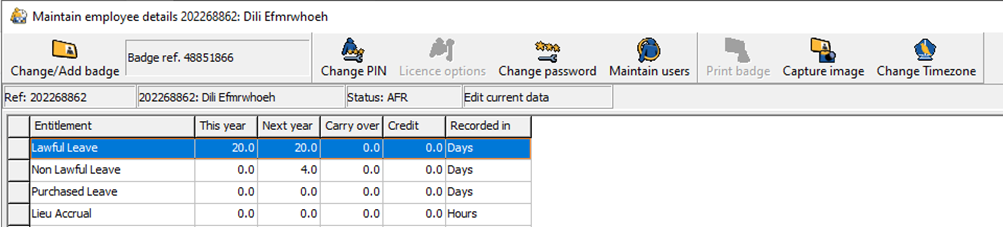
The example below shows 20.00 Days in the ‘Next year’ field. This means that after the Year End is performed, both the `This Year` AND `Next Year` fields will show 20.00 days.
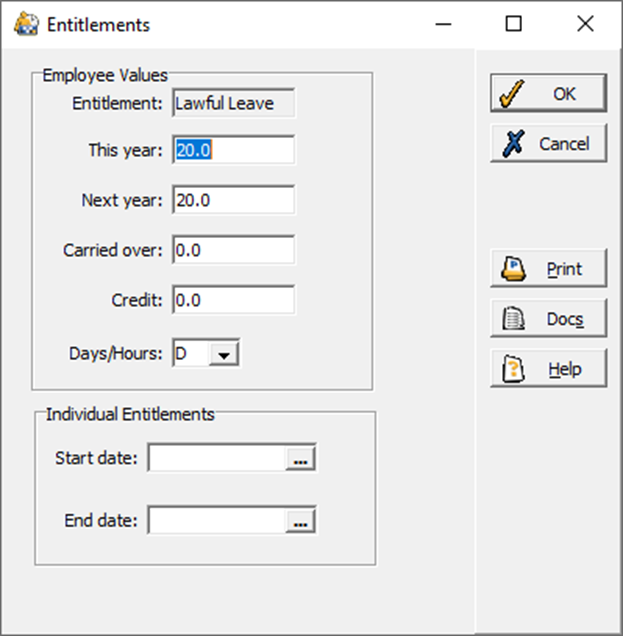
The ‘Carried over’ field shows how many days the employee has carried over from the previous year and the Credit field shows any manual adjustment that has been made to the entitlement over the past year.
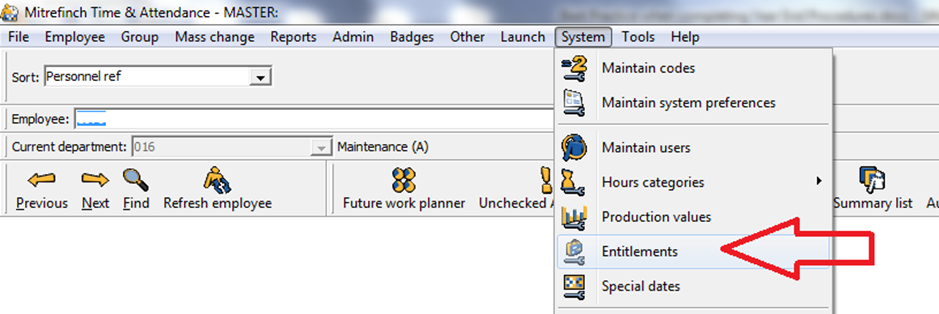
Step 3 - Next you can complete the Year End procedure in T&A. To do this go to System -> Entitlements in WINTMS.
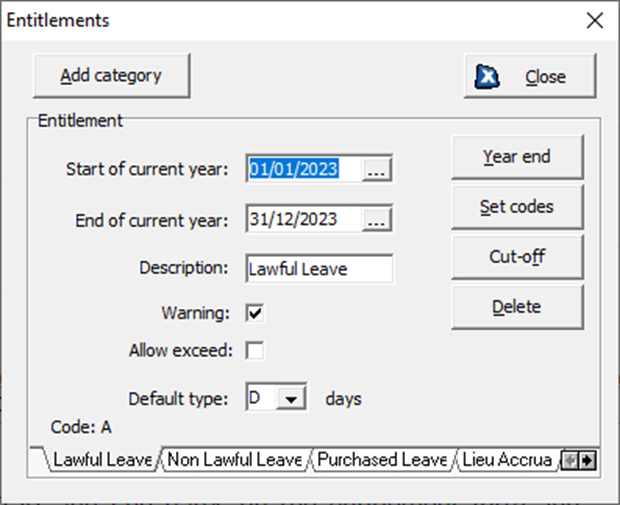
Select the required Entitlement by clicking the appropriate tab at the base of the form then click the Year end button. Please note you can ONLY perform this after the date shown for ‘End of current year’.
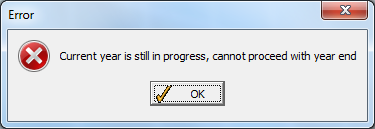
If you attempt to perform the Year End procedure prior to the end date, the following window will open stating that the current year is still in progress. You will need to wait until after the end date before this procedure can be completed. Click OK then Close to return to the main T&A screen.
A Process year end window will open. The Start and End of New Year fields are populated automatically by T&A based on the dates of the previous year. If you need to alter these dates you can either enter the new dates directly into the fields or use the calendar. Please ensure you check the start and end dates are correct prior to proceeding.
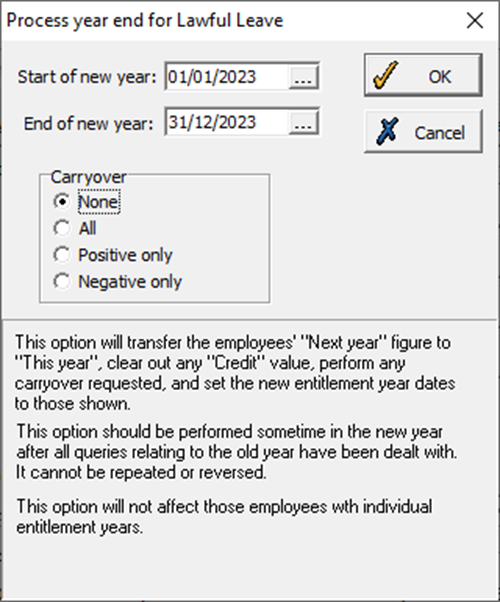
You must then select one of the four Carryover options:
- Select None if you do not wish any entitlement to be carried over to the New Year.
- Select All if you wish to carry over all unallocated entitlement i.e. both positive and negative.
- Select Positive only to carry over any entitlement still owing from the previous year i.e. not taken by an employee.
- Select Negative only to carry over any NEGATIVE entitlement i.e. entitlement that is to be taken away from the employee.
Once you have selected a Carryover option, click ‘OK’ to proceed and perform the Year End procedure for the Entitlement. Alternatively, click Cancel to return to the previous entitlement screen.
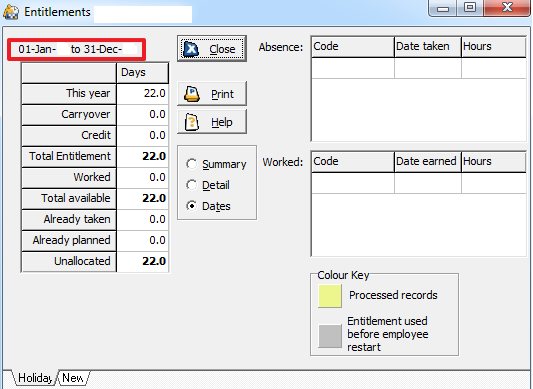
T&A will automatically adjust the associated Start and End dates on the entitlement form and any ‘This Year’, ‘Carryover’ and ‘Credit’ values. You can verify that this has been performed by checking that the date range has changed to the new year within the Employee Entitlements screen via the Employee menu: Employee > Entitlements
- For any other entitlements requiring a Year End, repeat from step 2 and select the appropriate entitlement tab located at the bottom of the Entitlements window.
- If you are also using Web T&A or the Silverlight module of T&A, then your IIS will need to be reset by your IT Department to read these changes. To do this, type IISRESET at a command prompt on the web server. Please be aware that this will reset the connections of all people connected to websites on this server and force them to log in again.
Watch the video tutorial on Step 3 - Complete Year End Process:
Individual Entitlement Year (Follow ONLY IF applicable to your organisation):
Step 4 - If you use individual entitlement years (i.e. different year start and end dates for each employee), you should still perform this procedure once a year so that the default settings remain correct for any employees who do not have individual entitlement years set up.
Watch the video tutorial on Step 4 - Run Individual Year End Process:
Further Information:
As stated in the introduction section, once this procedure has been performed it cannot be reversed within T&A. OneAdvanced will have a backup of your entitlement tables from the previous night.
Should you require any assistance or have any questions about the instructions then please contact T&A Support by raising a ticket via our support portal website by clicking here. Alternatively, please call 0330 726 0090.
